How I tested this
Setup
I took a snapshot of AdGuard Home v0.107.77 running in Docker. It ran on a 2 vCPU, 6 GB host shared with a Git server, reverse proxy and monitoring. The instance had 24 filter lists, 3.68 million rules and around 60,000 DNS queries per day.
What I observed
AdGuard Home used 0.55% CPU and 8.91% of the 6 GB memory allocation. Its query log and statistics used 228 MB, with the configuration below 1 MB. The dashboard showed 41% of DNS queries blocked.
Limits
This was one point-in-time snapshot on a shared host with a heavier filter load than a default home setup. It is not a sizing benchmark, and the blocked-query percentage does not measure how many ads disappeared.
Tested
8 August 2026.
My AdGuard Home instance handles around 60,000 DNS queries a day, with 24 filter lists and 3.68 million rules. I can see which client requested each domain, apply different rules by device, and debug a broken app from one query log.
That is the reason I run it instead of relying only on a public filtering service.
It does not show every action on the network. It shows the DNS requests that clients send through it. That boundary matters, as DNS data can tell you which domain a device requested but not what it sent inside an encrypted connection.
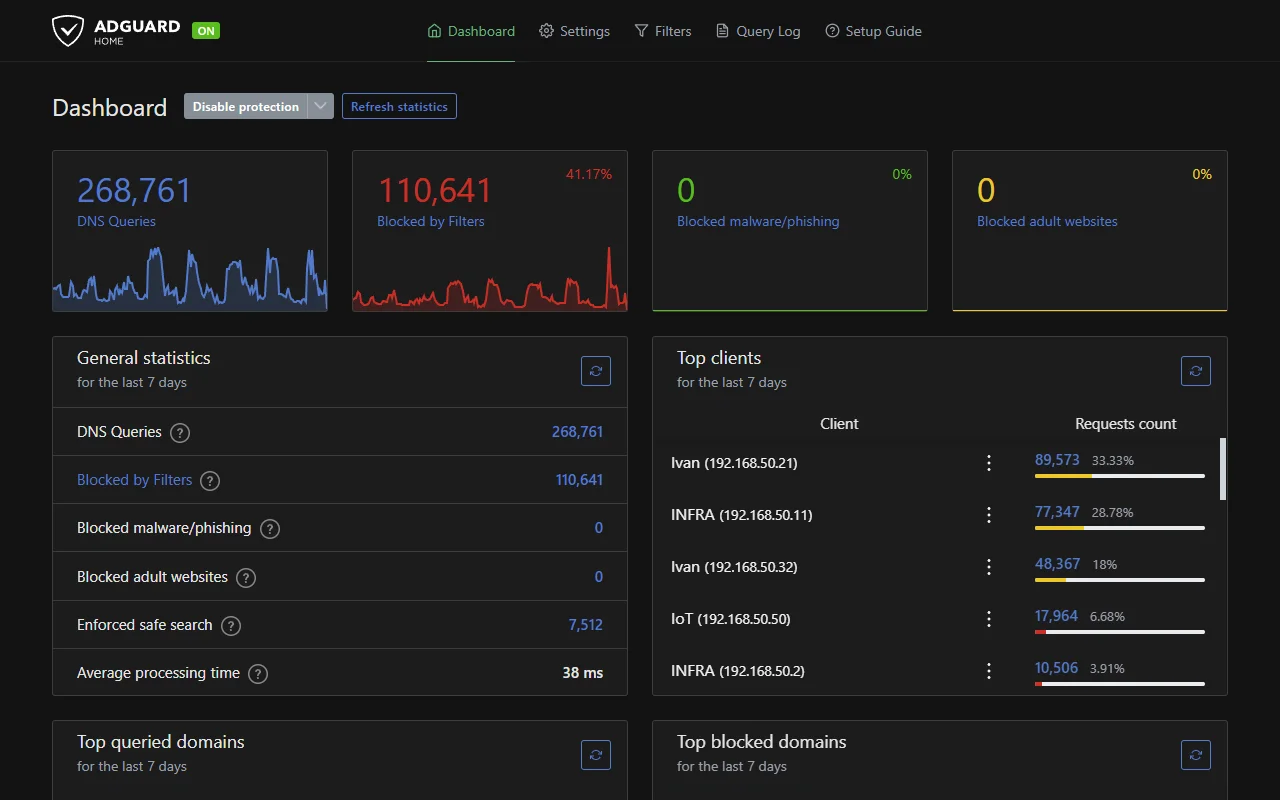
What AdGuard Home gives you
AdGuard Home is a DNS resolver you operate on your own network. It checks requested domains against filtering rules, forwards allowed requests to an upstream resolver, and records the result in its dashboard.
I run it for two things a public resolver cannot give me: local control and client context.
- name clients so the log shows a device instead of an IP address
- apply different filtering and upstream DNS settings by client
- enforce supported safe-search modes
- block selected services by client and schedule access to those services
- add your own blocklists and rules
- search the query log when something breaks
On my network, the dashboard snapshot above showed 41% of DNS queries blocked. That describes this setup and its 24 enabled lists. It is not a benchmark for another home or a measure of how many ads were removed.
What it cannot see or enforce
DNS filtering works only while a device uses your resolver. A VPN, private DNS setting, hardcoded resolver, cellular connection, or another network can bypass it unless you add separate network controls.
Safe search has the same limit. AdGuard Home supports Google, Bing, DuckDuckGo, Ecosia, Pixabay, Yandex, and YouTube restricted mode, but the rule is not impossible to bypass. A determined teenager will discover VPNs eventually (probably faster than the adults expect).
It also cannot remove ads served from the same domain as normal content. That includes many YouTube, Twitch, streaming, and sponsored social-media ads. Blocking the domain would block the content too.
Finally, encrypted DNS is not HTTPS content filtering. AdGuard Home can expose DNS over HTTPS, DNS over TLS, and DNS over QUIC when you configure certificates and a server name. That protects DNS transport. It does not inspect encrypted webpages or app traffic.
What my instance uses
AdGuard does not publish one universal minimum for RAM, CPU, and disk. The workload changes with client count, query retention, and especially the number and size of filter lists.
Here is the measured snapshot from my own instance on 8 August 2026:
- Version: AdGuard Home v0.107.77 in Docker
- Allocated host resources: 2 vCPU and 6 GB RAM, shared with a Git server, reverse proxy, and monitoring
- Filter load: 24 lists with 3.68 million rules
- DNS load: around 60,000 queries per day
- Observed use: 0.55% CPU and 8.91% of the 6 GB memory allocation
- Working data: 228 MB for the query log and statistics, with a configuration under 1 MB
Treat this as one observed setup, not a sizing table. My filter load is much heavier than a default home installation.
I would start with the default filter, enable query and statistics retention you actually need, and watch memory during a list update. Add another list only when it solves a gap you can name. More lists also create more false positives, so RAM is not the only cost.
For a basic home setup, I would use a Raspberry Pi and choose its memory based on the lists and other services running on it.
Choose an installation route
First check whether your router or NAS already supports AdGuard Home. Built-in support or a maintained package can be simpler than adding another machine, but the exact device list changes too often to keep here. Use the current documentation for your model.
For a dedicated Linux device, use AdGuard's official getting-started guide. Read an installation script before running it as root.
For Proxmox, the maintained community option is the AdGuard Home script from Community Scripts. It downloads and runs a root shell script, so inspect the project and decide whether you trust it before using it.
Docker
Docker is the route I would use when an always-on machine already runs containers:
docker run -d \
  --name adguardhome \
  --restart unless-stopped \
  -p 53:53/tcp \
  -p 53:53/udp \
  -p 3000:3000/tcp \
  -v /path/to/data:/opt/adguardhome/work \
  -v /path/to/config:/opt/adguardhome/conf \
  adguard/adguardhome
Replace both host paths before running it. Then open http://your-server-ip:3000 and follow the setup wizard.
Port 53 is the usual problem. Linux systems can already have a local resolver listening there, so check the current AdGuard Home Docker instructions before changing or disabling anything.
Connect the network
The AdGuard Home server needs a stable local IP. If its address changes, clients still ask the old address for DNS and the network appears broken.
I prefer a DHCP reservation in the router because the address stays managed in one place. A static address configured on the server also works if it sits outside the router's automatic allocation range.
Then set the router's DHCP DNS value to the AdGuard Home address. Most clients will receive it when they reconnect or renew their lease.
Check the result on one device before assuming the whole network moved. Some routers advertise themselves as DNS and forward requests internally. Some clients use their own resolver. IPv6 can also provide a different DNS address. The AdGuard Home query log should show the test client's requests if the path is correct.
Configure without creating your own problem
Upstream resolver
AdGuard Home forwards allowed requests to an upstream resolver. I would pick the upstream based on privacy and reliability, then measure it from my own connection. A resolver that is fast from another country tells you very little about your route.
Encrypted upstream DNS can protect the request between AdGuard Home and that resolver. It does not hide the request from the resolver itself.
Filter lists
The default AdGuard filter is a sensible starting point. I added specialised lists over time because I could see a specific gap, not because a bigger rule count looked better.
When a new list creates breakage, remove it or narrow the rule before adding another list to compensate. Otherwise you end up maintaining a pile of overlapping rules nobody understands.
Blocked services and schedules
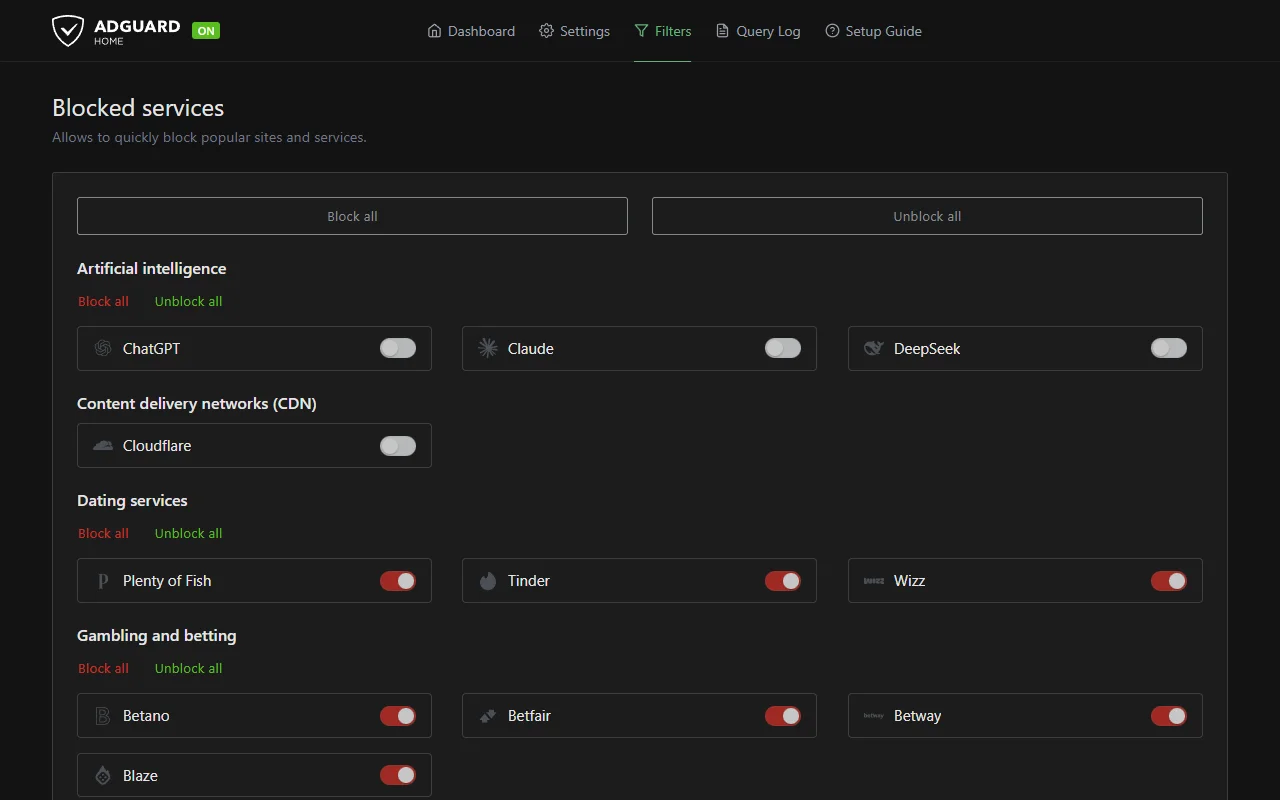
Blocked Services can deny access to supported social, gaming, streaming, messaging, and other services. Schedules apply to blocked services, for example allowing one during selected hours. They are not a general schedule for switching arbitrary filter lists between strict and relaxed modes.
Use the query log when something breaks
When a site, login, or app stops working:
- reproduce the problem on one client
- filter the query log to that client and time
- inspect blocked domains related to the service
- allow the required domain
- retry after the blocked response and client DNS caches expire
My blocked_response_ttl is 60 seconds. The allow rule applies immediately, but a device or browser can keep the previous blocked answer until its cache expires. Toggling Wi-Fi or flushing the local DNS cache can shorten the wait.
I leave the default blocking response in place. AdGuard Home can return NXDOMAIN, REFUSED, a null IP, or a custom IP, but a custom block page works cleanly only for plain HTTP. An HTTPS request will show a certificate error because your block-page server cannot pretend to be the requested site. The query log already gives me the answer I need.
When the device leaves home
The local resolver protects devices only while they use it. You can connect back through a VPN, but that adds another service to operate.
I use AdGuard's public resolver when a device is away from home. Android supports the private DNS hostname dns.adguard-dns.com. Current iOS guidance uses a configuration profile or supported app for coverage beyond one Wi-Fi network. The public DNS guide covers those options and their privacy tradeoffs.
Is it worth running?
For me? Absolutely. Per-client query logs and local rules make failures understandable, and that is worth the maintenance on a system I already operate.
I would stay with public AdGuard DNS if you only want basic domain blocking and no local service. Run AdGuard Home when you need local logs, per-client rules, your own lists, or control over the upstream resolver.
You get more control, but you also maintain the resolver.
Sources
- Overview, AdGuard. Describes AdGuard Home as a self-hosted, network-wide DNS filter under the operator's control.
- Clients, AdGuard. Documents friendly client names and per-client filtering and upstream settings.
- Docker, AdGuard. Documents the current image, volumes, ports, updates, host networking, and
systemd-resolvedconflict. - Encryption, AdGuard. Documents DNS over HTTPS, DNS over TLS, and DNS over QUIC configuration.
- Configuration, AdGuard. Documents blocking modes, response TTL, and safe-search provider settings.
- How ad block DNS can make the Internet better, AdGuard. Explains why DNS filtering cannot block same-domain YouTube ads or perform cosmetic filtering.
Get Personalized Help
Copy this prompt to ChatGPT, Claude, or your favorite AI assistant. Fill in your details and get guidance tailored to your specific situation.
Act as a cautious network-planning assistant for someone who read https://ivanmisic.net/blog/tech/adguard-home-network-wide-ad-blocking and is considering AdGuard Home. This is an interactive interview. Do not jump straight to installation commands.

Ask one question at a time and wait for each answer. Establish my goal and whether public filtered DNS already meets it. Then gather the exact always-on hardware, operating system or container platform, router and mesh model, DHCP and DNS control, IPv4 and IPv6 use, client count, logging and retention needs, parental-control expectations, technical comfort, maintenance owner, and recovery window.

Check current primary documentation for my specific installation route and router or platform before giving version-sensitive instructions. Cite those sources and state what could not be verified. Do not infer model-specific settings from a similar device. Never ask me to paste credentials, public IP details, private keys, full query logs, or identifiable client data.

Before any change, produce a readiness gate covering a stable local IP, configuration backup, port 53 conflicts, storage and retention, upstream resolver choice, privacy implications, expected bypasses, and a rollback DNS value. Explain that DNS logs show domain requests, not encrypted page contents, and that VPNs, private DNS, cellular use, same-domain ads, and some IPv6 paths can bypass or limit filtering.

Recommend Docker, a direct install, a maintained package, or no self-hosted installation only after comparing the verified facts. Start with the default filter and add a list only for a named gap. Include a one-client test before changing network-wide DHCP DNS, plus verification in the query log and a rollback test.

Show every consequential command or router change as a proposal, explain what it changes, and wait for approval. Do not disable an existing resolver, use a root script, expose encrypted DNS publicly, or change the whole network until its exact impact and reversal are clear.

Finish with an implementation plan, validation checklist, maintenance owner, and stop conditions. If the environment is not ready, recommend public filtered DNS or a lab test instead.