# Opening the terminal for the first time
**Author:** Ivan Misic
**Published:** 2026-01-09
**URL:** https://ivanmisic.net/blog/ai-tools/opening-the-terminal
**In plain English**
You need four terminal actions to start Claude Code: open the terminal, run a command, move to the correct project folder, and close it when you are done.
- Open PowerShell on Windows, Terminal on macOS, or your distribution's terminal on Linux
- Read a command before running it; permission prompts need the same review
- Paste with right-click or Ctrl+V on Windows, Cmd+V on macOS, and usually Ctrl+Shift+V on Linux
- Use `echo hello` for a harmless first command, then `dir` on Windows or `ls` on macOS and Linux to list the current folder
- Type `exit` to close the terminal, and move to the specific project folder before starting Claude Code later
The first time I opened a terminal, I saw a black window with a blinking cursor and thought I had broken something. I had not. To start Claude Code, I needed four actions: open the terminal, run a command, move to the project folder, and close it when I was done.
This guide uses the terminal version of Claude Code. Desktop, web, and IDE versions also exist, so the terminal is a choice for this workflow.
## Before We Start
I'm assuming you've used some form of AI chat before, such as ChatGPT or claude.ai. The prompts below may look slightly different on another operating system or product version. If a command or screen differs, describe what you see and ask your AI assistant to explain it before continuing.
If the terminal is genuinely new to you and you want more than the four actions here, Anthropic now publishes a [terminal guide](https://code.claude.com/docs/en/terminal-guide) written for exactly this starting point.
## Opening It on Your Computer
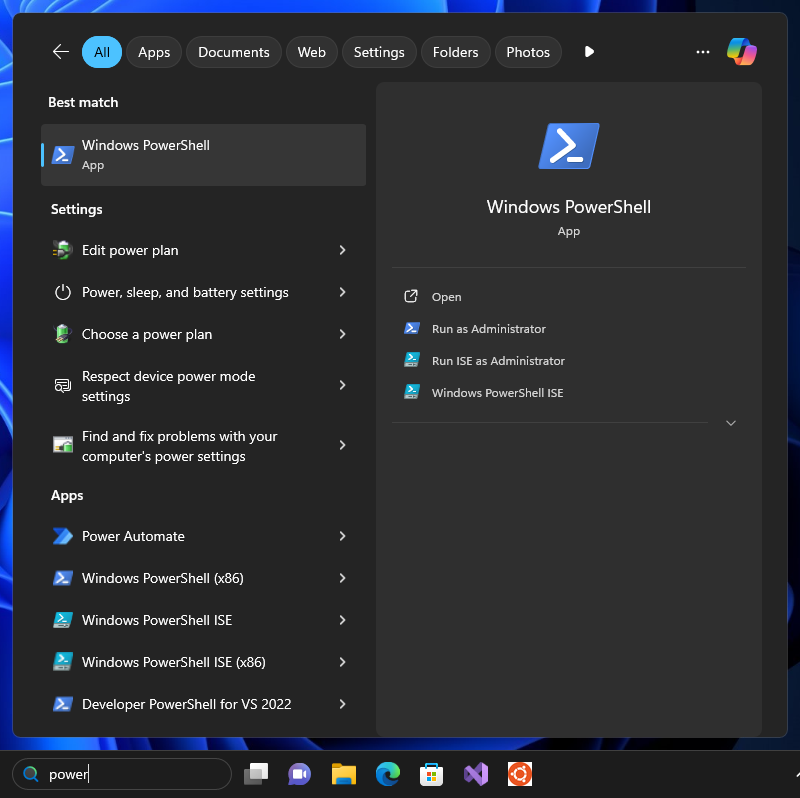
Use the steps for your operating system.
On Windows:
1. Press the **Windows key** on your keyboard (bottom-left, has the Windows logo)
2. Type **PowerShell**
3. Click **Windows PowerShell** from the results
On macOS:
1. Press **Cmd + Space** (opens Spotlight search)
2. Type **Terminal**
3. Press **Enter**
On Linux:
1. Try **Ctrl + Alt + T**, which works in many desktop environments
2. If it does not, open the application menu and search for Terminal, Console, Konsole, or the terminal app supplied by your distribution
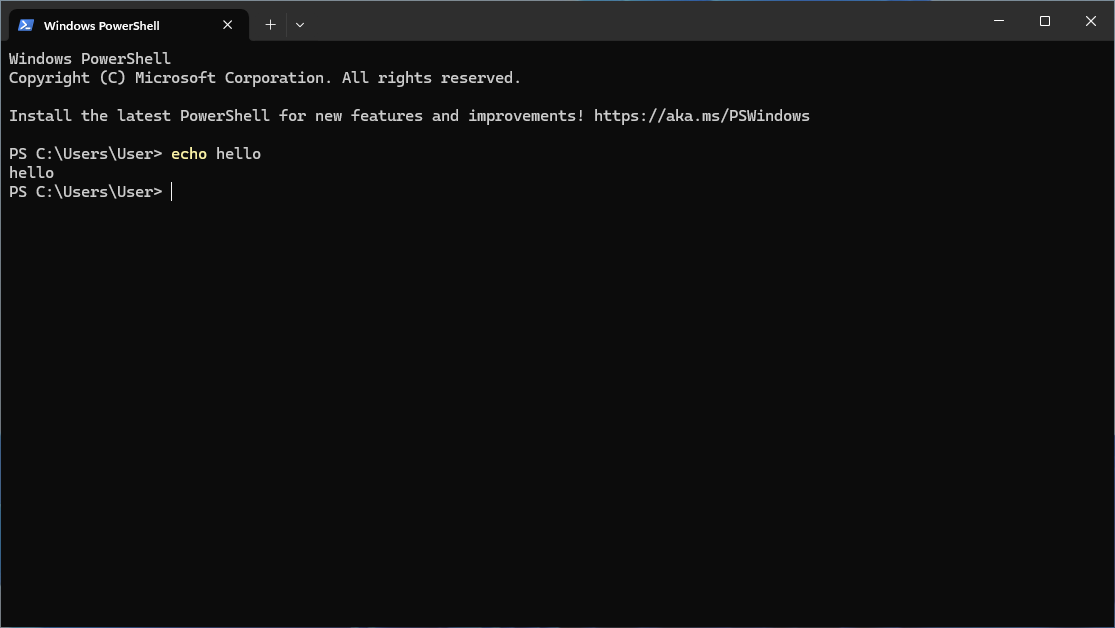
You should now see a window with a blinking cursor. That is the terminal, and the cursor shows where the next command will appear.
## If You Are Using the Desktop App
The desktop app has a terminal of its own, built in. It is a different thing from the window you just opened, and it is worth knowing which one you are looking at.
Open it from the **Views** menu, or press **Ctrl + `** on macOS and Windows alike. It starts in the session's working directory and shares Claude's environment, so `git status` there sees the same files Claude is editing. To start somewhere specific, right-click a folder in the chat and choose **Open in terminal**.
Two limits worth knowing before you rely on it: it works in local sessions only, not cloud ones, and it needs Claude Desktop v1.2581.0 or later.
The rest of this guide uses your computer's own terminal, because that is where the command-line version of Claude Code starts. The built-in one is for running commands next to a session that is already going.
## What You're Looking At
The blinking cursor sits after some text that looks something like this:
```text
C:\Users\YourName>
```
or on Mac/Linux:
```text
yourname@computer:~$
```
That text tells you where you "are" on your computer, like the address bar in a file explorer. It shows which folder you're currently in.
The cursor is where you type. The path matters later, because it decides which project folder Claude Code starts from.
## Three Things to Know
You could spend years learning terminal commands. You don't need to. For Claude Code, you need exactly three things:
**1. Type, press Enter, and sometimes give permission**
That's how you tell the terminal to do something. Type text, press Enter. The terminal runs your instruction and shows the result. A shell command, installer, or Claude Code tool call can ask for confirmation, but do not approve it only because a prompt appeared. Read what is requesting access and what it will change. Password input in a terminal may show no characters while you type.
**2. Copy and paste works**
Paste shortcuts depend on the terminal. Current Windows Terminal and PowerShell commonly support **Ctrl + V**; many Linux terminals use **Ctrl + Shift + V**; macOS terminals use **Cmd + V**. If a shortcut does not work, use the terminal's Edit menu or documented paste action.
You can copy commands from this guide, but read each one before running it.
**3. Type `exit` to leave**
When you're done, type `exit` and press Enter. The window closes. Nothing breaks. You can always open a new terminal tomorrow.
## Your First Command
Run one harmless command to check the terminal:
```bash
echo hello
```
Your terminal should respond with:
```text
hello
```
The `echo` command prints the text that follows it.
## One More Thing to Try
Next, list the files in the current folder. The folder matters because Claude Code starts from that location.
In Windows PowerShell:
```bash
dir
```
On macOS or Linux:
```bash
ls
```
The command should list files and folders such as Documents, Desktop, or Downloads. Before starting Claude Code later, move to the specific project folder you want it to use.
With the terminal open, the next step is [installing Claude Code](/blog/ai-tools/installing-claude-code-five-minutes).